Page Titles and Meta Descriptions That Get People to Click
How to write clear page titles and meta descriptions, why Google sometimes replaces them, and how to check the result through CTR in Search Console.
Read the article →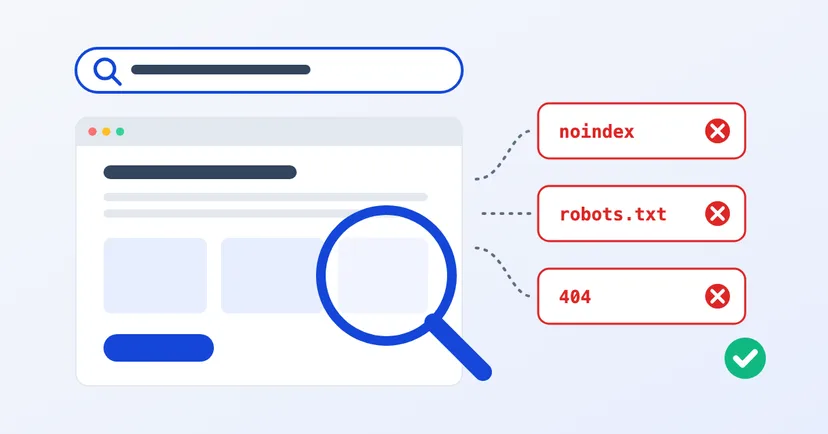
Your new product page went live two weeks ago, but when you search for it on Google, you get the old page, or nothing at all. The marketing team is asking questions, your web developer says "just wait", and you don't know who is right.
Sometimes it really is just a matter of time. But often there is a cause you can check and fix. This article covers the most common causes, how to check them yourself in Google Search Console, and the order in which to fix things.
Don't guess from the search results. Open Google Search Console, paste the page address into the URL Inspection box at the top, and look at the result. The tool shows whether the page is in Google's index and, if it isn't, why.
Bear in mind that the status "URL is on Google" means the page is eligible to appear in search results, not that it is guaranteed to. If the page is indexed but doesn't appear for the searches you expect, the problem lies in the content and the competition, not the index. Google itself says it doesn't guarantee that it will crawl, index or serve any page, and it doesn't accept payment to do so.
For a view of the whole website, open the Page indexing report. It groups pages that aren't indexed by reason.
This is the quickest cause to fix, and it often happens after a new website launches.
If you really want to keep a page hidden, use noindex. But don't block that page in robots.txt as well, because Google has to be able to open the page to read the noindex tag.
Read also: the checklist before a website launches.
Google finds pages mainly through links from other pages and through sitemaps. A page that isn't linked from the menu, a category or another page on your website can go undiscovered for a long time.
Two statuses in the report often cause confusion:
What you can do: link the new page from other relevant pages, such as a category page, related product pages or articles on the same topic. Also make sure the page is in your website's sitemap, the list of pages submitted to Google through Search Console. Ask your web developer whether the sitemap is updated every time a new page is added.
If several pages have almost the same content, such as one product at several addresses, Google picks one as the main (canonical) version and doesn't show the others. In the report, this usually reads "Duplicate without user-selected canonical".
URL Inspection shows two things: the canonical you declared and the canonical Google selected. If they differ, check whether your page is really different enough from the others. The status "Alternate page with proper canonical tag" needs no fixing. It means your set-up is already correct.
Read also: redesigning a website without losing rankings.
Google gives several reasons why pages aren't indexed, one of which is low-quality content. A page with just one photo and two sentences, or one that is nearly the same as another page, understandably won't be a priority.
Google also says not to expect every URL on a website to be indexed. Pages such as filter results or print versions don't need to be on Google. What matters is that your key pages are indexed.
A page that doesn't appear on Google almost always has a reason. Search Console has usually written it down already; you just need to read it.
Never connected your website to Search Console? Start with how to get your website on Google. If you need help checking your website, get in touch.
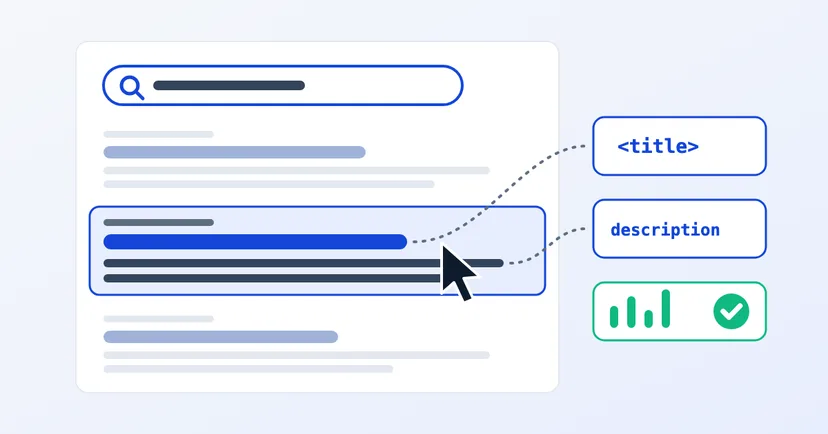
How to write clear page titles and meta descriptions, why Google sometimes replaces them, and how to check the result through CTR in Search Console.
Read the article →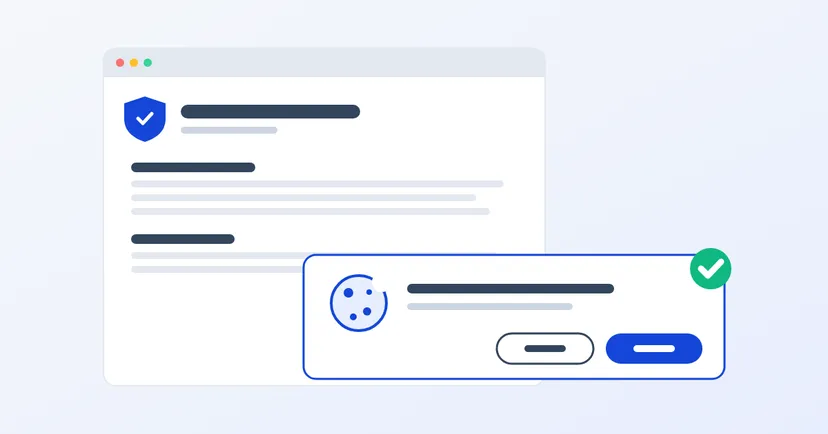
What a privacy policy for website owners in Indonesia must include under UU PDP: the required information, cookies, an honest consent banner, common mistakes.
Read the article →