Page Titles and Meta Descriptions That Get People to Click
How to write clear page titles and meta descriptions, why Google sometimes replaces them, and how to check the result through CTR in Search Console.
Read the article →
Many company websites are built on WordPress. After launch they are often left alone: nobody logs in for months, update notices pile up and the accounts of staff who have left are still active. Everything looks normal, until one day the home page changes or Google shows a warning.
The good news is that WordPress security upkeep doesn't have to be complicated. With one person responsible and a clear schedule, most of the work fits into a single session each month. This article gives you a checklist you can use yourself, or ask your website provider to follow.
WordPress already does part of the work itself. Since version 3.7, minor core updates, including security releases, install automatically by default. Since version 5.5, plugins and themes can also be set to update automatically.
But automatic doesn't mean done. Automatic updates can fail, can be switched off by the host or by another plugin, and they don't deal with things like user accounts or backups. WordPress's own documentation points out that plugins have deep access to your site, which is why keeping them updated matters. A monthly check makes sure the automatic parts are really working, and that the rest gets done.
WordPress's security guide is clear on this: if you are not using a plugin, delete it from the system. A deactivated plugin is still on the server, and still needs looking after.
Open the Users screen and read the list one by one. The question is simple: does everyone on this list still work with you, and does their role match their job?
WordPress has a built-in diagnostic tool under Tools > Site Health. It flags critical issues that can become security weaknesses, for example:
Fix everything in the critical category. If it needs server access, ask your host or website provider for help. Then look at the security or login logs if you have them. The WordPress guide calls logs your best friend for understanding what is happening on your site, because prevention alone is sometimes not enough.
One setting only needs to be applied once but is worth rechecking: switch off the file editor in the dashboard with the DISALLOW_FILE_EDIT setting. The WordPress guide says this editor is often the first tool an attacker uses after managing to log in.
WordPress's security guide recommends backing up your data regularly, including the database. Each month, check three things: the latest backup really exists and is recent, a copy is stored away from the website's server, and every so often you try restoring it to a test environment. The full guide is in our article on the 3-2-1 backup rule.
WordPress security isn't about one magic plugin. What matters is that someone checks, every month, with the same list.
No time or team to do this every month? Every one of our website packages includes hosting and maintenance, so updates and server security are our responsibility once the site is live.
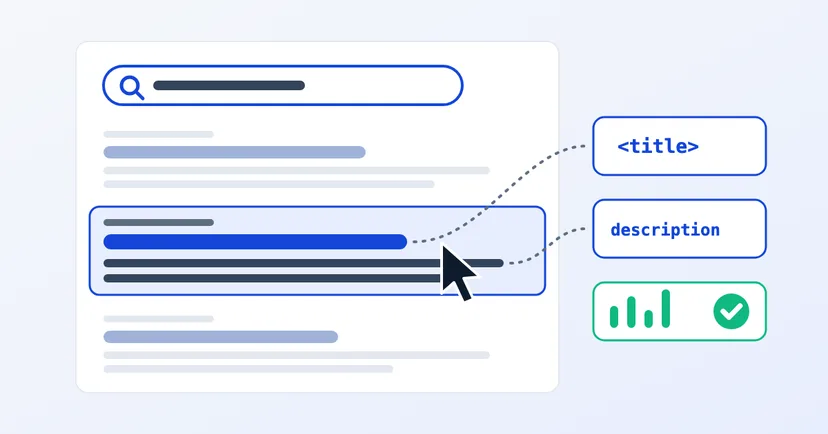
How to write clear page titles and meta descriptions, why Google sometimes replaces them, and how to check the result through CTR in Search Console.
Read the article →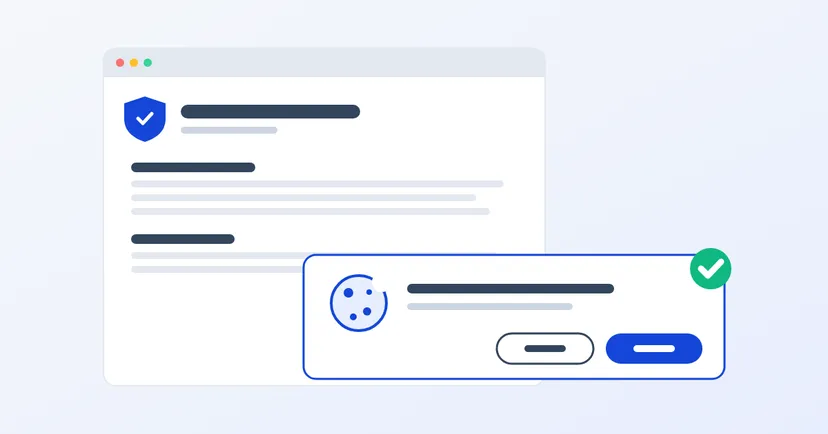
What a privacy policy for website owners in Indonesia must include under UU PDP: the required information, cookies, an honest consent banner, common mistakes.
Read the article →