Page Titles and Meta Descriptions That Get People to Click
How to write clear page titles and meta descriptions, why Google sometimes replaces them, and how to check the result through CTR in Search Console.
Read the article →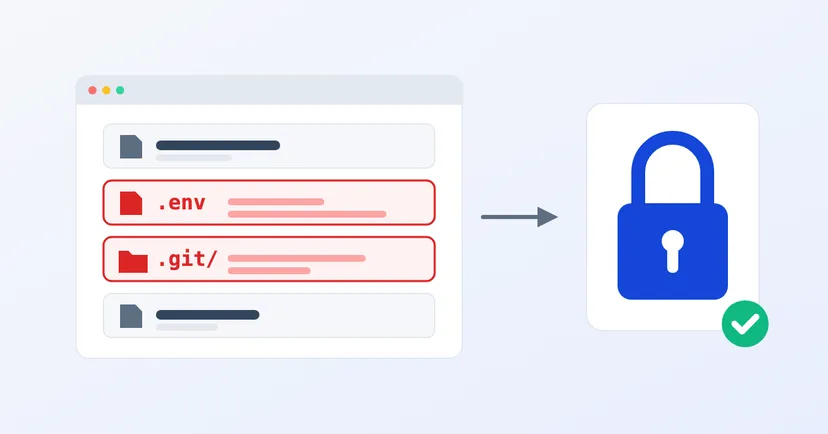
Plenty of company websites look perfectly fine from the outside. The pages load, the forms work and the browser shows no warnings. But in the same folder as those pages there is sometimes a file nobody should ever be able to open: an .env file holding the database password, or a .git folder holding the full history of the website's code.
Leaks like this are rarely noticed, because nothing breaks. The website carries on as normal while someone else reads your company's most important keys. This article explains what these two things are, why they end up exposed, and how to check for them and close them off.
An .env file is a settings file used by many web applications, for example those built with Laravel. It usually holds the most sensitive data of all: the database address and password, the email sending account, keys for payment or cloud storage services and the application's encryption key. Laravel's own documentation says this file must not be committed to the code repository, because the credentials in it would be exposed.
The .git folder is created by Git, the tool developers use to record every change to the code. According to Git's official documentation, almost everything Git stores lives in this folder, and copying it gives you nearly the whole repository. In other words, anyone who can download the .git folder from your website can rebuild the code, including old versions and files that were once saved and later deleted.
The cause is almost always how the website was deployed, not some sophisticated flaw. Common patterns include:
Nobody needs to know your website in particular to find these files. Automated bots try the same addresses on thousands of websites: /.env, /.env.backup, /.git/config and so on. If one of them answers, the bot has what it came for.
We see it ourselves. The sensor on digimasi.com records bot requests for addresses that do not exist on our site, and .env files are among the most requested. We publish the summary as it is on our research page.
OWASP, the non-profit that compiles the best-known list of web application security risks, ranks security misconfiguration second in the OWASP Top 10 2025. It also notes that every application tested had some form of misconfiguration.
The basic check is simple and can be done in a browser, on your own company's website only:
This is only the most basic check. There are other file names worth looking for, such as backups and archives. A thorough review is best done by your website provider or through planned security testing.
Deleting the file is not enough, because you don't know who has already copied it. In order:
Read also: the basics of company website security.
An .env file or a .git folder doesn't break how a website looks. That is exactly why the leak can last a long time without anyone noticing.
Want to know whether your company website has a leak like this? See how we work in our pentest methodology, or request a pentest quote.
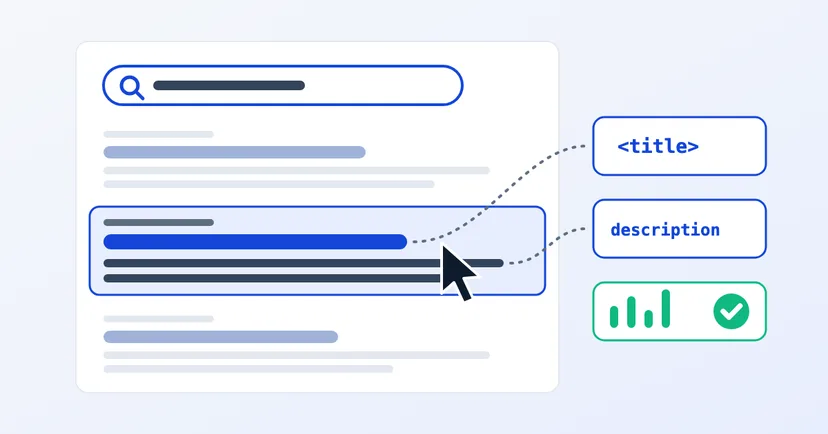
How to write clear page titles and meta descriptions, why Google sometimes replaces them, and how to check the result through CTR in Search Console.
Read the article →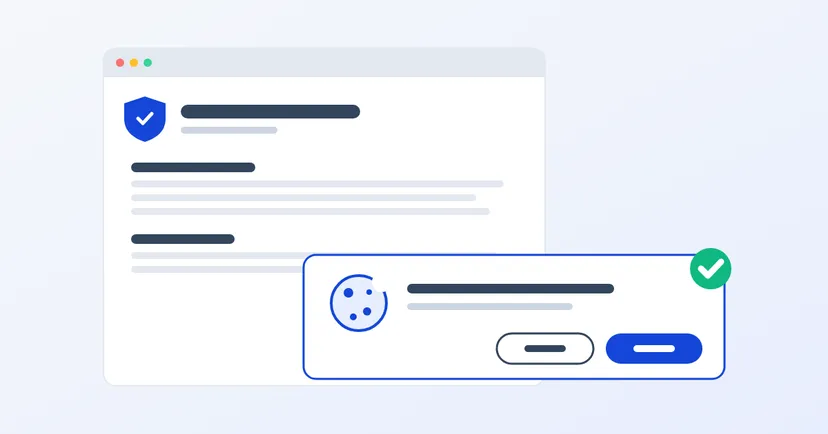
What a privacy policy for website owners in Indonesia must include under UU PDP: the required information, cookies, an honest consent banner, common mistakes.
Read the article →