How Much Does a Company Website Cost? The Factors That Decide the Price
Quotes for a company website can vary widely. Learn what drives the price and the running costs that are often forgotten before you choose a quotation.
Read the article →
Imagine you receive quotes from two suppliers. One is sent from an address like sales@companyname.co.id, the other from a free email address with a random name. The first almost certainly looks more convincing. Email on your own domain is one of the simplest ways to show that your company is serious and trustworthy.
This article covers why company email should use your own domain, the service options available, and the technical settings that help your emails reach the recipient's inbox.
Free email is easy to set up, but it has several weaknesses for business use:
With your own domain, the company controls every email address. Accounts can be created, deactivated or redirected when staff change, without losing the communication history.
Don't have a domain yet? Read .co.id or .com: which domain is better.
Google's email service, with an interface similar to Gmail, plus calendars, file storage and shared documents. A good fit for teams already used to Google services.
Microsoft's email service, integrated with Outlook, Word, Excel and Teams. Often chosen by companies that already rely heavily on Microsoft applications.
Many hosting plans include email. This can be enough for simple needs, but check the mailbox capacity, delivery reliability and security features.
An address such as info@companyname.co.id is forwarded to another existing inbox. This is practical for general addresses, but less ideal if you also need to send email from that address, as the setup is more complicated and delivery can be less reliable.
No single option is right for every company. Consider the number of users, the applications your team already uses, storage needs and who will manage it.
When your email arrives, the receiving server checks whether it really came from your company. These checks rely on three settings in your domain's DNS.
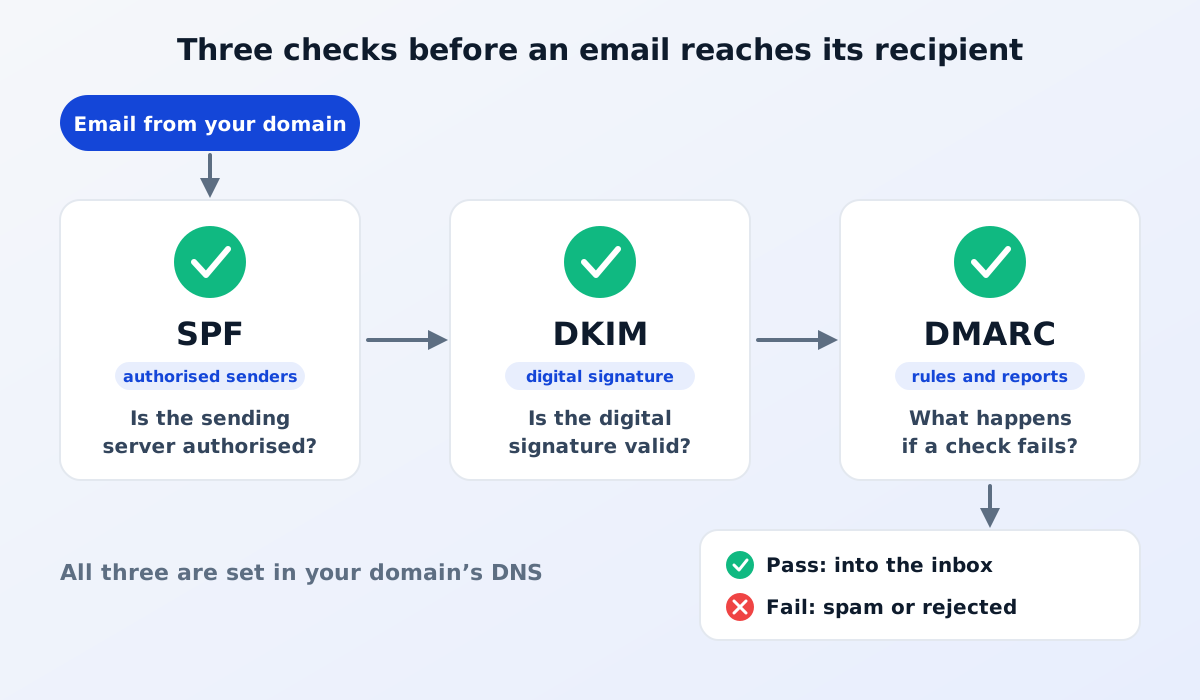
SPF is a list of servers authorised to send email on behalf of your domain. If an email comes from a server that isn't on the list, the recipient has reason to be suspicious.
DKIM adds a digital signature to every email you send. The recipient can check that the email really was sent from your domain and that its content wasn't altered along the way.
DMARC tells the receiving server what to do if an email fails the SPF or DKIM check: accept it anyway, put it in spam, or reject it. DMARC can also send you reports about emails sent in your domain's name.
Many major email providers now require or strongly recommend these settings, especially for senders who send a lot of email. Without them set up correctly, your quotes are more likely to land in the spam folder, and it is easier for others to forge emails in your company's name.
DMARC usually starts in monitoring mode. Once you have confirmed that all your legitimate email passes the checks, the policy can be tightened step by step. These settings also make it harder for fraudsters to use your domain for phishing emails.
Ideally, yes. Using the same domain for your website and email makes it easier for buyers to recognise your company and strengthens trust. The website and email can use different providers, because they are configured separately in DNS.
Usually, yes. Most services provide a way to migrate old email. Plan the move carefully, including the timing of the MX record change, so no email is lost during the process.
Email on your own domain is your company's digital business card: simple, but it shows straight away that you mean business.
Read also what web hosting is and how to choose it, or see our website services.

Quotes for a company website can vary widely. Learn what drives the price and the running costs that are often forgotten before you choose a quotation.
Read the article →
The basic steps for keeping a company website secure: HTTPS, regular updates, strong passwords and 2FA, user access rights, backups and protection from spam.
Read the article →